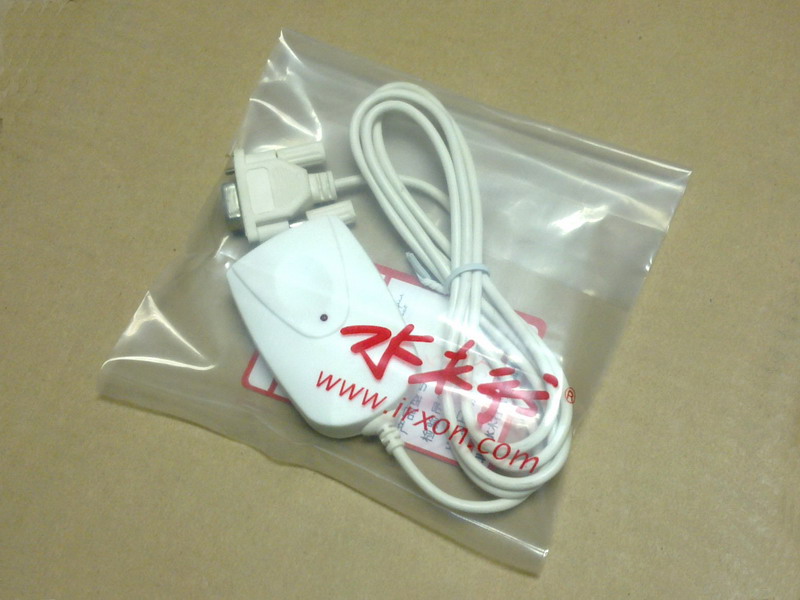
| IR220: RS-232
Serial Port Infrared Adapter |
|
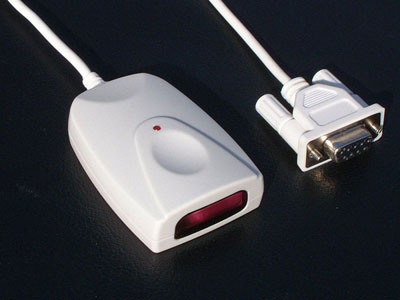
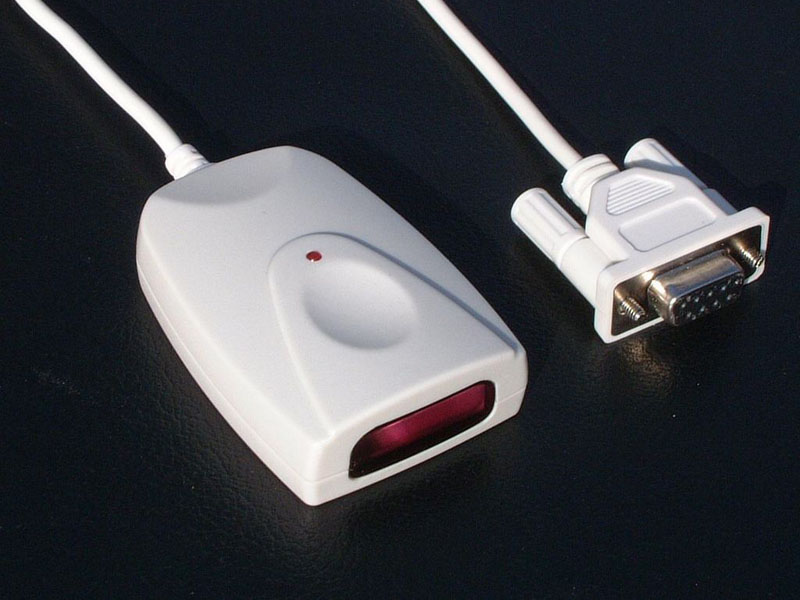
IR220 is a RS232 to RAW IR (IrPHY Only) adapter, it can
convert RS232 data to infrared, no need to install driver.
It features a RS232 serial cable replacement on PC or embedded system. There are
7 different default baud rates to
choose when customer place an order. |
|
• Deriving power from DTR and RTS of
standard RS232 interface, user must enable DTR and RTS before using it, or
connect DTR/RTS pin to 3.7V~12V external DC directly.
• The default baud rate of IR220 IR adapter is 9600bps, IRXON can also
supply adapters with the
default baud rate at 2400, 4800, 19200, 38400, 57600 or 115200 bps.
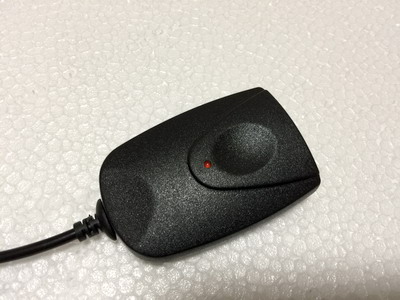
• There is a red LED on the top center of the adapter body, the LED indicate
the activity of infrared TX signal. |
|
|
|
• Connection: DB9-F RS232 Serial COM Port
• Default baud rate: 9600 bps
-Default baudrate options: 2400/4800/19200/38400/57600/115200 bps
• Communication Distance: 1 to 100 cm. (15°optical cone angle)
• Size and weight: 2.8"L x 1.63"W x 0.68"H ( 67 x 46 x 19 mm) , 2.44oz (73g)
• RS232 Cable length: 1.2m
• Power Source: From DTR and RTS pin of DB9 RS232 port
• Peak Power Consumption: 0.3W
• Operating Temperature: -10℃ to 60℃ |
|
• IR220 RS232 Serial Port IR Adapter x 1 pcs |
• Serial port setting:
Please set COM port on your application program before infrared
communication.
For a 9600bps IR220 adapter, the serial port should be set like this:
- 9600, N, 8, 1
- Flow control: none
or Xon/Xoff
- Enable DTR and RTS.
• Changing IR220 baud rate:
If you buy a standard IR220 adapter (default baud rate
9600bps), you can change its baud rate to the others by rewriting your
application program source code, the following list is the program steps.
1, Open com port, clear DTR
2, Set RTS, and wait at least 7 us
3, Send Control Byte to IR220 through TXD to set new baud rate.
Baud Rate Control Byte:
115200 0x00
57600 0x01
38400 0x02
19200 0x03
9600 0x04
4, Wait until the stop bit of Control Byte is sent (for 9600 baud rate, it
takes about 100 ms)
5. Clear RTS (return to NORMAL operation)
6. Wait at least 50 us, new baud rate takes effect.
Note: IR220 can’t remember new baud rate set by this way, it will restore
9600bps when it is power off and restarted, so it must be programed in your
application program .
Click here to download
demo baud rate setting
program (Need Visual Basic Runtime Library)
Click here to download demo baud rate setting program
source code
(Visual Basic 6.0) |
| IR220 DB9F Connector
Pin Definition |
|
|
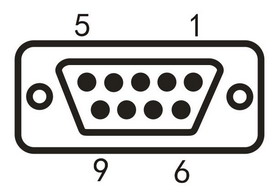 |
2, TXD, Data from IR220 to PC
3, RXD, Data from PC to IR220
4, DTR, Supply power (or 3.7V~12V DC-IN), select baud rate
5, GND, Ground
7, RTS, Supply power (or 3.7V~12V DC-IN), select baud rate
Pin 1,6,8,9, Not Connected |
|