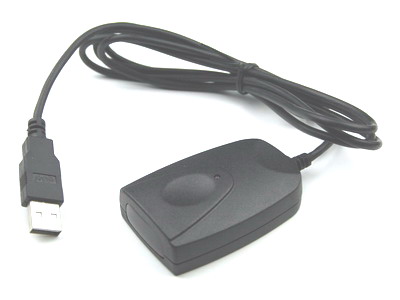
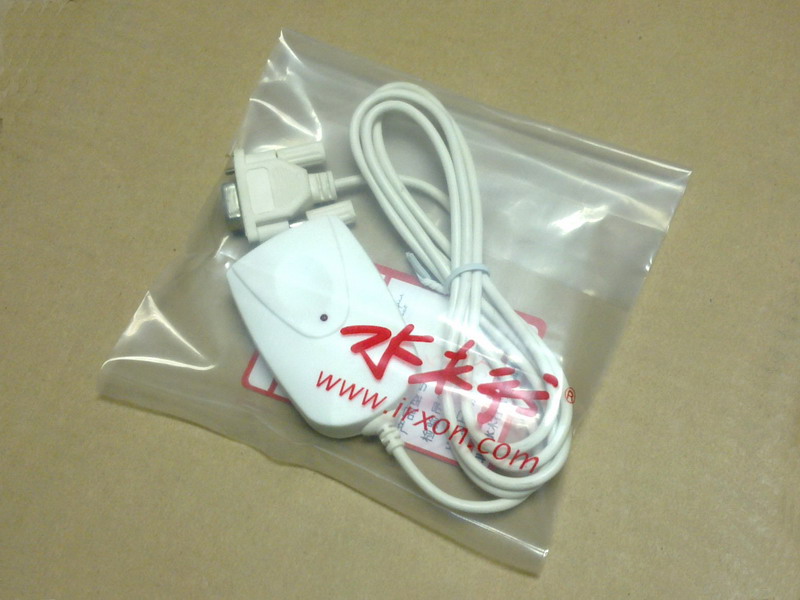
| IR750: USB FIR adapter(4Mbps) |
|
|
|
|
|
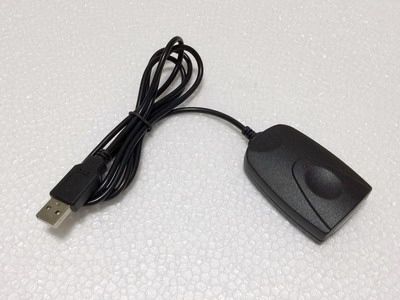
black |
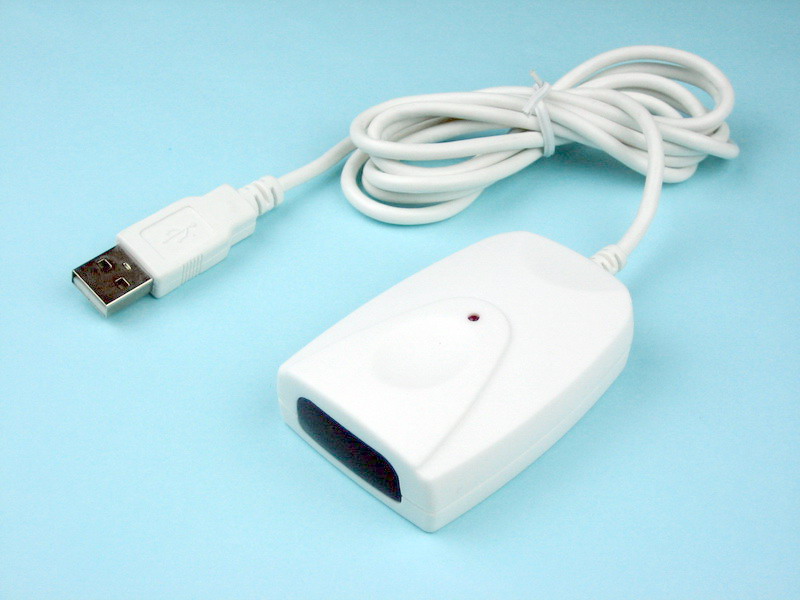
white |
|
|
|
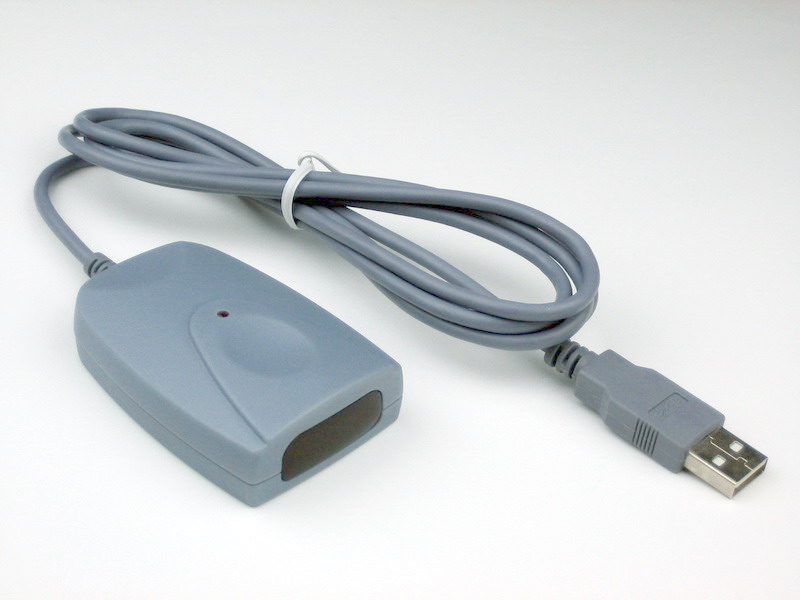
grey |
package |
|
More pictures
|
|
|
|
Manual
|
|
|
Driver |
|
|
application
|
|
|
Knowledge
|
|
|
Testing
|
|
|
FAQs
|
|
|
Price: USD$12.00 |
|
Buy it now! |
|
The USB Infrared Adapter provides a simple way to add
IrDA port to non-IrDA-enabled PC's. It provides wireless infrared
connectivity between desktop computer and IrDA compliant mobile devices
including cellular phones, notebooks, pocket PCs, Palms and printers.
Application & Function
-Wireless file transfer between desktop PC and IrDA OBEX supported mobile
phones, or run mobile phone software to backup personal phonebook, change
ring tone and operator logo, send short messages, or use mobile phone as a
wireles modem to surf the internet.
-Share / transmit / backup files between PC and notebook PC
-IR Sync Operations with PDA of Palm OS and Pocket PC of Windows CE
-Connect infrared-capable Canon and HP printers to print wirelessly |
|
-Using Sigmatel STir4200s as the main
chip. Easily enable IrDA function on the desktop PC through USB port
(Transfer up to 4Mbps).
-An infrared
Activity LED is placed on top of the shell, the LED
shows the activity of IRTX, user can see status of the adapter from
different LED twinkling interval.
-Plug and play in Windows XP/Vista system, manually driver installation is
not needed in the system because the driver of IR750 has been embedded in
XP/Vista.
-IRXON is a cooperate member of IrDA and has five years experence in IrDA
products manufacturing. IRXON IrDA products have high quality and
reliability. No defective products passed to the market.
-Compatible with all kinds of mobile phones, PDAs and notebook PCs which
have built-in IrDA infrared port .
-Website and email technical support is available 8 hours a day, 7 days a
week |
|
|
|
-USB 1.1 and IrDA Version 1.3 FIR
-Communication distance: 1-100cm
-Effective Angle: 45-degree area
-Communication speeds: 9.6, 19.2, 38.4, 57.6, 115.2Kbps, 4Mbps
-Active current < 400 mA standby current < 0.5 mA
-Infrared wavelength: 850-900nm
-Dimensions: 2.8"L x 1.63"W x 0.68"H ( 71mm x 41mm x 18mm)
-Weight: 42g
-Operating Temperature: 0-60 C |
-Intel Pentium or higher or compatible PC
-Available USB port and CDROM drive
-Microsoft Windows 98, 98SE, ME, 2000, XP, Vista |
-IR750 USB to IrDA adapter
-A driver CD
-User's manual |
|
- Windows XP Driver Installation
Windows XP has built-in the driver support of IR750. No extra driver
installation is required.
Plug the IrDA-USB Adapter to an available USB port in your computer, the
computer will automatically detect the IR770 and install the necessary
drivers. Then, the IrDA-USB Adapter is ready to use.
You can now verify the installation by looking at the listings in the Device
Manger. (Go there by Start-Control Panel-System-Device Manager). The
listings of SigmaTel USB-IR Dongle under Infrared Devices indicating the
drivers for the IrDA device has been properly installed. In the Control
Panel, a Wireless Link icon is added.
- Windows 98/Me Driver Installation
Please note the driver must be installed first prior to hardware
installation in Windows 98/ME. During driver installation, Windows may ask
for files that are located on the Windows 98/Me CD. You will need to have
Windows 98/Me CD available. Some PC have the Windows CAB files already
archived on the hard drive and will not require the actual CD.
1. Insert the provided driver CD-ROM into the drive.
2. Select E:\english\IR750\ (If E: is your CD-ROM drive), and double click
the file Setup.
3. The SigmaTel USB-IrDA InstallShield Wizard appears. Click Next to
continue.
4. The Wizard shows License Agreement, click Yes to accept the agreement.
Click Next to copy program files required for installation.
5. If Windows requires the Windows 98/Me installation CD, insert it to the
CD-drive. Select Finish when file copy has finished.
6. Plug the IrDA-USB Adapter to an available USB port. The computer will
complete the driver installation.
7. Choose Finish to restart the computer, and the IrDA Adapter is ready for
use.
Checking Windows 98 installation
Double-clicking on the My Computer on the Desktop. The Infrared Recipient
icon is added to the My Computer Folder. The Infrared Recipient allows for
file transfer between computers.In the Control Panel, an Infrared icon is
added. In the system tray on the taskbar, an icon of Infrared Monitor is
added. In the Device Manger, the listings of SigmaTel USB-IrDA Adapter under
Network adapters and Virtual Infrared COM Port and Virtual Infrared LPT Port
under Ports indicate the network driver for the IrDA device has been
properly installed.
Checking Windows Me installation
Looking at the listings in the Device Manger. (Go there by
Start-Settings-Control Panel-System-Hardware-Device Manager). The listings
of Infrared Communication Device under Infrared device and SigmaTel USB-IrDA
Dongle under Network adapters are added to indicate the drivers for the IrDA
USB device have been properly installed. In the Control Panel, a Wireless
Link icon is added. The plug-and-play icon in the device tray at the lower
right hand corner of the desktop indicates the IrDA device is currently
plugged in. Double click on the icon reveals that the IrDA device is working
properly.
- Windows 2000 Driver Installation
1. Insert the provided CD-ROM into the drive.
2. Choose E:\english\IR750\ (where E: is the drive letter of your CD-ROM
drive), and double click the file Setup.
3. The SigmaTel USB-IrDA InstallShield Wizard appears.
4. Click Next to continue. The Wizard shows License Agreement, click Yes to
accept the agreement. Click Next to copy program files required for
installation.
5. Plug the IrDA-USB Adapter to an available USB port. The computer will
complete the driver installation.
6. Choose Finish to complete the installation, and the IrDA Adapter is ready
for use.
Checking Windows 2000 installation
looking at the listings in the Device Manger. (Go there by
Start-Settings-Control Panel-System-Hardware-Device Manager). The listings
of SigmaTel USB-IR Dongle under Infrared Devices indicating the drivers for
the IrDA device have been properly installed. In the Control Panel, a
Wireless Link icon is added. The plug-and-play icon in the device tray at
the lower right hand corner of the desktop indicates the IrDA device is
currently plugged in. Double click on the icon reveals that the IrDA USB
device is working properly.
- File Transfer over Infrared
You can now test the adapter by sending a file to a notebook PC , a PDA, or
a mobile phone that supports OBEX protocol over IrDA. Suppose you are
running Windows Me,2000 or XP system, pointing the adapter towards the other
device, both systems detect each other and connect. The IR icon in the
system tray on the taskbar is activated, a Wireless Link icon appears on the
desktop. Double-click on the IR icon, or Wireless Link icon will bring up
the Wireless Link dialog box, locate the folder from Look in and select the
files that you want to send, click on the send button, the file is now
transmitted to the other device.
- Frequently Asked Questions
*It is difficult to connect some NOKIA phones in Windows XP system.
*Click on the Start button, then Settings-Control
Panel-System-Hardware-Device Manager, click SigmaTel USB-IR Dongle under
Infrared Devices, select Properties, then Advanced, set Infrared transceiver
type option at Vishay TFDU6101E.
*Windows XP has detected an IrDA device, but IR icon doesn't appear in the
system tray.
*The problem is due to Infrared Monitor service start failure. Infrared
monitor service depends on two services - Remote Procedure Call and Terminal
Service. Please go to Start - Run and type services.msc, then looking at the
two services and change the Terminal Service startup type to Manual, make
sure Infrared Monitor and Remote Procedure Call Services startup type are
Automatic.
*The adapter can't work properly after installing service pack 2 for Windows
XP.
*If you are experiencing difficulties with your adapter after installing
service pack 2 for Windows XP, please uninstall the driver for your USB-IrDA
adapter and then reinstall the driver. In some instances Windows SP2 may not
install itself correctly and reinstalling the driver for the USB-IrDA
adapter will not correct the problems you are experiencing. If this happens,
please uninstall Windows SP2, reinstall SP2, and then install the driver for
your USB-IrDA adapter.
|
|